User Guide: Record and Export a Song
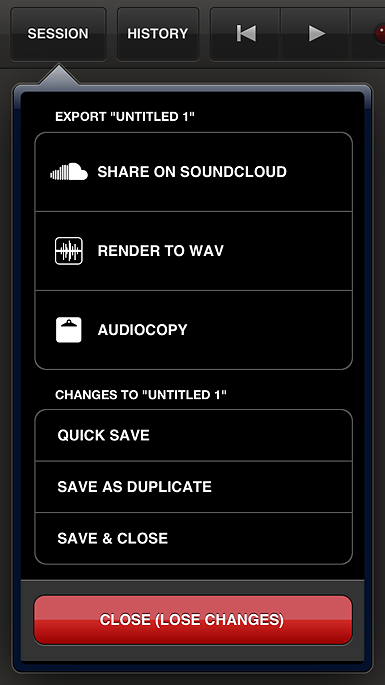
Tabletop 1.5 offers improved export capabilities from the Session button in the tabletop transport. Post a song directly to SoundCloud, export it as a .wav to iTunes, or copy the track for use in another app with AudioCopy. These forms of export copy all the audio recorded so far in the session.
Recording with Recorder M2
It is still possible to record a session by adding Recorder M2 input recorder to the surface and routing it between the mixer and master output. This process is also useful when recording only parts of a signal chain instead of the whole session.
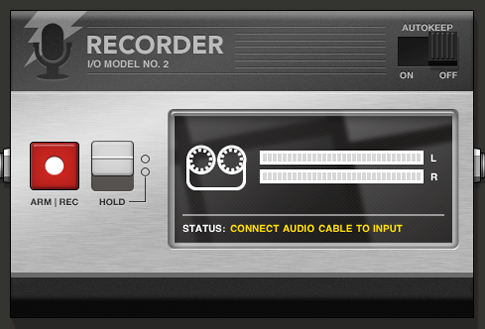
- Enter routing mode and connect the output of Recorder M2 to the Mr. O master output. Connect your main mixer (or a device if you are not using a mixer for output) to Recorder M2. This adds the recorder to the end of the signal chain so it captures all audio as it proceeds to the master output.
- Tap “Record” on the input meter and start your playback. Recorder M2 captures all sound generated in playback whether you are playing a Triggerator’s blocks in linear sequence or a regular non-Triggerator session changing devices and playing in real-time. For a clear recording without distortion, check the input meters on Recorder to make sure you’re not clipping in the red.
Export a Song
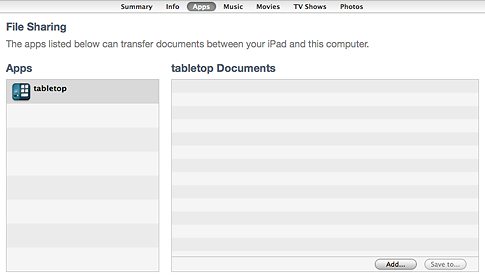
- Once you have recorded audio, connect your iPad to your computer. Open iTunes on your computer and select your iPad under the DEVICES header in the left navigation column.
- Click on the “Apps” tab above the main window.
- Scroll down to the “File Sharing” section.
- Select Tabletop from the list of Apps.
- Under “Tabletop Documents” the recordings will be listed in order by date. Select the recording you want and click “Save to…” This opens a dialog box to select a location on your computer.
- To import your song to iTunes, locate the file where you saved it on your computer, and open with iTunes. Then you can rename, convert to mp3, etc.